How to Set Up Status Page RSS and Atom Feeds in 2026
Learn how to configure RSS and Atom feeds on your status page so subscribers, tools, and dashboards get instant incident updates without email or SMS.

TL;DR: RSS and Atom feeds let subscribers pull incident updates into feed readers, internal dashboards, or automation tools without relying on email or push notifications. Setting them up takes minutes: enable the feed on your status page, verify the structure, distribute the URL, and optionally pipe it into Slack, Zapier, or a monitoring dashboard for redundancy.
Why RSS and Atom Feeds Still Matter in 2026
Email deliverability keeps getting harder. Corporate spam filters, DMARC enforcement, and inbox fatigue mean a chunk of your incident emails never get seen in time.
RSS and Atom feeds sidestep that entirely. They're pull-based, not push-based — subscribers or systems check the feed on their own schedule, which means no bounce rates, no unsubscribe fatigue, and no dependency on a third-party mail provider staying up.
They're also machine-friendly. NOC teams, internal dashboards, and automation platforms can parse a feed programmatically far more reliably than they can parse an HTML email. If you already offer email and SMS notifications, a feed is the missing channel for technical subscribers who want raw, structured data.
RSS vs. Atom: What's the Difference?
Both formats deliver the same core function — a chronological list of updates in XML — but they differ slightly:
- RSS 2.0: Simpler schema, widely supported by feed readers, dating back to the early 2000s but still the default choice for most integrations.
- Atom: Stricter XML spec, better handling of timestamps and unique IDs, preferred by some enterprise ingestion tools and readers that demand strict validation.
Most status page tools, including Livstat, generate both formats automatically from the same incident data, so you don't have to choose — just publish both and let subscribers pick.
What Should Be in Your Status Page Feed
A well-structured feed entry should include:
- Incident title — clear and specific ("API Gateway Degraded Performance", not "Issue #4521")
- Timestamp — in ISO 8601 format for both
pubDate(RSS) andupdated(Atom) - Status — investigating, identified, monitoring, resolved
- Affected components — which services or regions are impacted
- Link — a permalink back to the full incident page for context
Skipping any of these fields makes the feed less useful for automation. A feed reader can display a wall of text, but a script parsing your feed for a dashboard needs consistent, predictable fields to extract status and severity programmatically.
Step-by-Step: Setting Up Your Feed
1. Enable the feed in your status page settings
Most status page platforms generate feeds automatically once your page is live. In Livstat, every public status page ships with an RSS feed at /history.rss and an Atom feed at /history.atom by default — no manual configuration required.
If you're on a platform where feeds are opt-in, look for a "Subscriber Notifications" or "Integrations" section in your dashboard settings and toggle RSS/Atom on.
2. Verify the feed structure
Before publishing the link anywhere, validate it:
- Open the feed URL directly in a browser — you should see raw XML, not a 404 or blank page.
- Run it through the W3C Feed Validator to catch malformed tags.
- Add the feed to a reader (Feedly, Inoreader, NetNewsWire) and confirm entries render correctly with title, timestamp, and link intact.
Malformed feeds silently fail in downstream tools, so this validation step saves you support tickets later.
3. Add the feed link to your status page footer
Make the feed discoverable. Add an RSS icon or a labeled link ("Subscribe via RSS") near your other subscription options — email, SMS, Slack, webhook. Many status page templates auto-include a small feed icon in the footer; confirm yours is visible and not buried in settings.
Also add the standard <link rel="alternate" type="application/rss+xml"> tag in your page's HTML head. This lets browsers and feed readers auto-detect the feed without subscribers needing to copy-paste a URL.
4. Distribute the feed URL
Once live, share the feed URL in:
- Your status page's subscribe modal, alongside email/SMS options
- Developer documentation, if your API consumers need programmatic incident awareness
- Internal wikis or runbooks, so on-call engineers can add it to their own dashboards
5. Pipe the feed into other tools (optional but recommended)
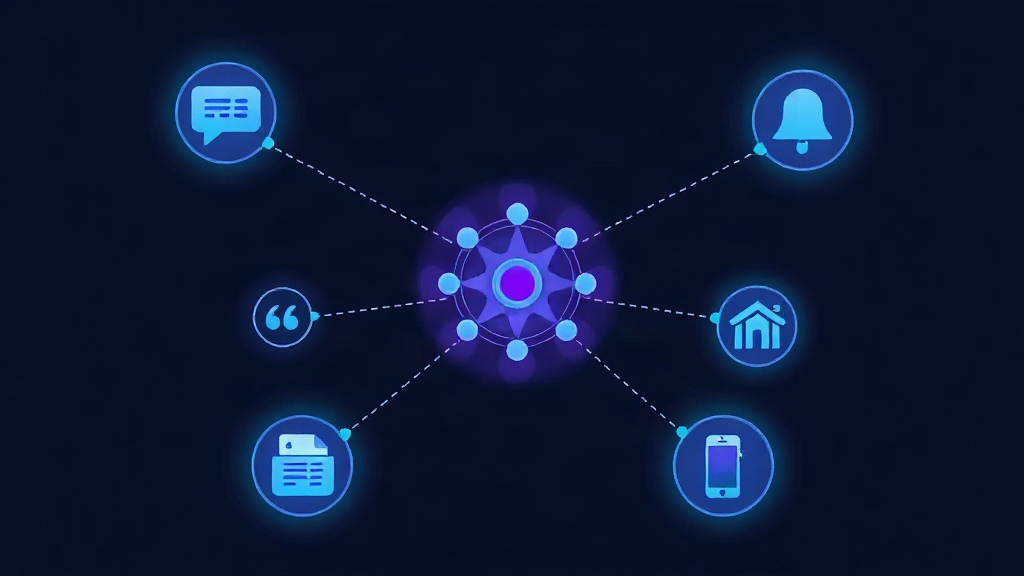
RSS/Atom feeds are the easiest bridge into automation platforms that don't have native status page integrations:
- Slack/Teams: Use an RSS-to-Slack connector to auto-post new incidents into a channel — a solid fallback if your primary Slack incident notifications integration ever misfires.
- Zapier/Make: Trigger a Zap on new feed items to log incidents into a spreadsheet, ticketing system, or CRM.
- Internal dashboards: Parse the feed with a lightweight script and display live incident status on an office TV or NOC wallboard.
- Aggregators: If you depend on multiple vendors, combine their public status feeds with yours in a single reader to monitor your entire dependency chain from one place.
Common Mistakes to Avoid
- Publishing an empty feed during quiet periods and never testing it. Feeds with zero entries for months can silently break without anyone noticing until an actual incident happens. Do a periodic test post or check the feed quarterly.
- Forgetting to update the feed when incidents resolve. If your status page marks an incident resolved but the feed entry doesn't reflect it, subscribers relying on the feed for automation will act on stale data.
- Not setting a
guid(RSS) orid(Atom) per entry. Without a stable unique identifier, feed readers may re-notify subscribers every time an incident gets a minor edit, causing alert fatigue. - Ignoring caching headers. If your feed URL is cached too aggressively by a CDN, subscribers might see updates minutes late. Set a short cache TTL (60-120 seconds) on the feed endpoint.
Feeds as Part of a Layered Notification Strategy
RSS and Atom shouldn't be your only notification channel — they're a complement to email, SMS, and webhook alerts, not a replacement. Technical subscribers who want a lightweight, no-noise way to track your reliability will gravitate to the feed, while your broader customer base still needs push-based email or in-app banners.
Think of it as covering the last mile: some of your most engaged users — engineers integrating with your API, ops teams tracking your service as a dependency — prefer pull-based updates they control on their own schedule.
Key Takeaway
Setting up RSS and Atom feeds on your status page takes under 30 minutes but adds a durable, low-maintenance notification channel that never suffers from deliverability issues. Validate the feed structure, make it discoverable, and consider piping it into Slack or a dashboard for extra visibility — then let it run quietly in the background as one more way subscribers stay informed during an outage.