How to Set Up Incident Notifications with Slack in 2026
Learn to configure automated Slack alerts for system incidents. Get instant notifications when your services go down and keep your team informed throughout the resolution process.
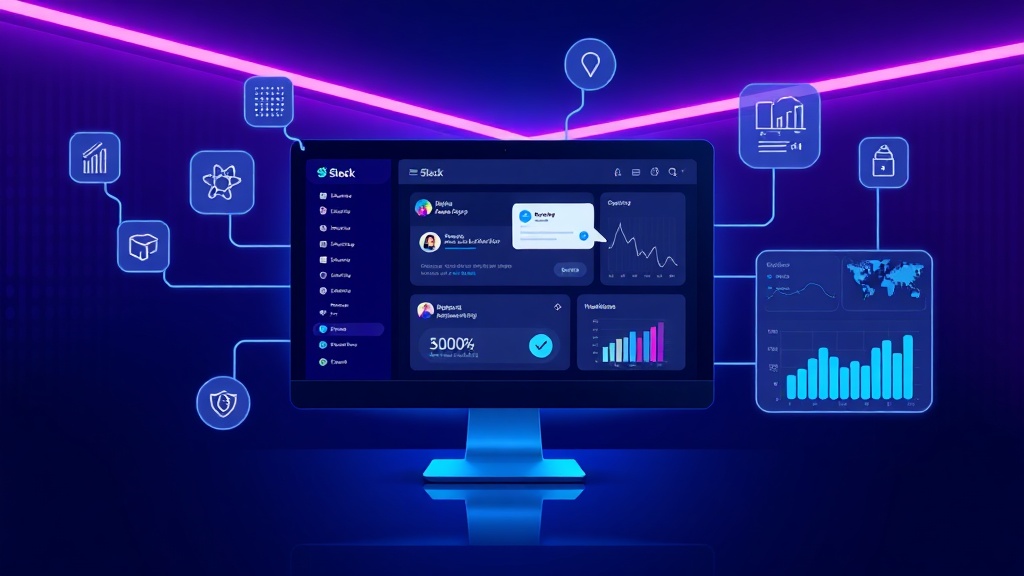
TL;DR: Setting up Slack incident notifications involves creating webhooks, configuring monitoring tools to send alerts, and establishing notification channels with proper escalation workflows. This guide covers the complete setup process, best practices, and common troubleshooting steps.
Why Slack Integration Matters for Incident Response
When your application goes down at 3 AM, every second counts. Slack notifications ensure your team gets instant alerts regardless of where they are or what device they're using.
Studies show that teams with automated Slack incident notifications resolve issues 40% faster than those relying on email alerts. The real-time nature of Slack, combined with mobile push notifications, means critical incidents don't go unnoticed.
Slack's threading capabilities also make it easier to coordinate response efforts. Your team can discuss solutions, share updates, and maintain a clear timeline of actions taken — all within the same notification thread.
Prerequisites for Slack Incident Notifications
Before diving into the setup process, ensure you have the necessary permissions and tools:
- Admin access to your Slack workspace
- Monitoring tool with webhook capabilities (Livstat, Pingdom, DataDog, etc.)
- Basic understanding of JSON formatting
- Test environment to verify configurations
You'll also want to identify which team members should receive different types of alerts. Not every service disruption requires waking up the entire engineering team.
Step 1: Create Slack Incoming Webhooks
Slack's Incoming Webhooks feature allows external services to post messages directly to your channels.
Navigate to your Slack workspace settings and select "Manage Apps." Search for "Incoming Webhooks" and click "Add to Slack."
Choose the channel where you want incident notifications to appear. Most teams create dedicated channels like #incidents or #alerts to keep notifications organized.
Slack will generate a unique webhook URL that looks like: https://hooks.slack.com/services/T00000000/B00000000/XXXXXXXXXXXXXXXXXXXXXXXX
Copy this URL — you'll need it for your monitoring tool configuration. Treat this URL like a password since anyone with access can post messages to your channel.
Step 2: Configure Your Monitoring Tool
The setup process varies depending on your monitoring solution, but the core concepts remain consistent.
Using Livstat
In your Livstat dashboard, navigate to Integrations and select Slack. Paste your webhook URL and configure which incidents should trigger notifications:
- Service downtime
- Response time degradation
- SSL certificate expiration
- DNS resolution failures
Livstat allows you to set different notification thresholds. For example, you might want immediate alerts for complete outages but only notify after 5 minutes of elevated response times.
Using Other Monitoring Tools
Most monitoring platforms follow similar patterns. Look for "Notifications," "Integrations," or "Webhooks" in your tool's settings.
Provide your Slack webhook URL and configure the payload format. Many tools offer Slack-specific templates that handle formatting automatically.
Step 3: Customize Notification Content
Generic alerts like "Service is down" provide little actionable information. Customize your notifications to include:
- Service name and affected endpoints
- Incident severity level
- Timestamp of the incident
- Direct links to dashboards or status pages
- Initial troubleshooting steps
Here's an example of a well-structured incident notification:
🚨 CRITICAL: API Gateway Down
Service: payment-api.example.com
Started: 2026-01-15 14:23 UTC
Duration: 3 minutes
Status Page: https://status.example.com
Dashboard: https://monitor.example.com/api-gateway
Step 4: Set Up Escalation Workflows
Not all incidents require the same response level. Create different Slack channels for different severity levels:
#critical-incidents— Page on-call engineer immediately#incidents— Standard alerts during business hours#monitoring-noise— Low-priority warnings and informational alerts
Use Slack's notification preferences to ensure critical alerts bypass "Do Not Disturb" settings. Your on-call engineers should receive push notifications for critical incidents even outside normal hours.
Implementing Auto-Escalation
Some monitoring tools support time-based escalation. If an incident isn't acknowledged within 10 minutes, automatically notify additional team members or managers.
You can achieve this with Slack workflows or third-party tools like PagerDuty that integrate with both your monitoring system and Slack.
Step 5: Test Your Configuration
Never wait for a real incident to discover your notifications aren't working. Test your setup thoroughly:
Manual Testing
Most monitoring tools have "Send Test Alert" functionality. Use this to verify messages appear in the correct Slack channels with proper formatting.
Test during different scenarios:
- Business hours vs. after hours
- Weekend alerts
- Multiple simultaneous incidents
Automated Testing
Consider scripting regular tests of your notification system. A simple curl command can trigger test webhooks to ensure your Slack integration remains functional:
curl -X POST -H 'Content-type: application/json' \
  --data '{"text":"🧪 Test alert - please ignore"}' \
  YOUR_WEBHOOK_URL
Schedule these tests weekly or monthly to catch configuration drift or webhook expiration.
Advanced Slack Notification Features
Interactive Messages
Slack supports interactive buttons and menus within messages. You can create notifications that allow team members to:
- Acknowledge incidents directly from Slack
- Trigger automated remediation scripts
- Update incident status
- Assign incidents to specific team members
Threading and Context
Use Slack's threading feature to keep incident discussions organized. Post the initial alert as a new message, then use threads for status updates and team coordination.
This approach prevents notification channels from becoming cluttered while maintaining full context for each incident.
Custom Emoji and Formatting
Develop a consistent emoji system for quick visual identification:
- 🚨 Critical incidents
- ⚠️ Warnings
- ✅ Resolved incidents
- 🔄 Ongoing maintenance
Bold and italic formatting helps highlight critical information within notification messages.
Common Troubleshooting Issues
Notifications Not Appearing
First, verify your webhook URL is correct and hasn't expired. Slack webhooks can be deactivated if they consistently receive malformed requests.
Check your monitoring tool's logs for HTTP response codes. A 404 error indicates an invalid webhook URL, while 403 suggests permission issues.
Duplicate Notifications
Multiple team members might configure the same monitoring alerts, resulting in duplicate Slack messages. Audit your notification settings to ensure each incident type has only one configured webhook.
Missing Context in Alerts
If notifications lack important details, review your monitoring tool's webhook payload configuration. Most platforms allow custom fields and formatting options.
Best Practices for Incident Slack Notifications
Keep these principles in mind when configuring your incident notifications:
Be specific with channel naming. Use descriptive names like #api-incidents instead of generic terms like #alerts.
Implement notification fatigue prevention. Too many low-priority alerts train teams to ignore all notifications. Set appropriate thresholds and use severity levels.
Document your notification system. Create runbooks explaining what each type of alert means and the expected response actions.
Regular review and optimization. Monthly reviews of incident patterns help identify noisy monitors or gaps in coverage.
Conclusion
Properly configured Slack incident notifications form the backbone of effective incident response. The key is balancing comprehensive coverage with notification fatigue prevention.
Start with critical service monitors and basic webhook integration. As your team becomes comfortable with the system, add advanced features like interactive buttons and escalation workflows.
Remember to test your configuration regularly and adjust thresholds based on actual incident patterns. A notification system that works reliably during real incidents is worth the investment in proper setup and maintenance.