How to Set Up Incident Notifications with Slack in 2026
Learn to configure Slack notifications for incidents with webhooks, apps, and automation. Reduce response time and keep your team instantly informed when issues arise.
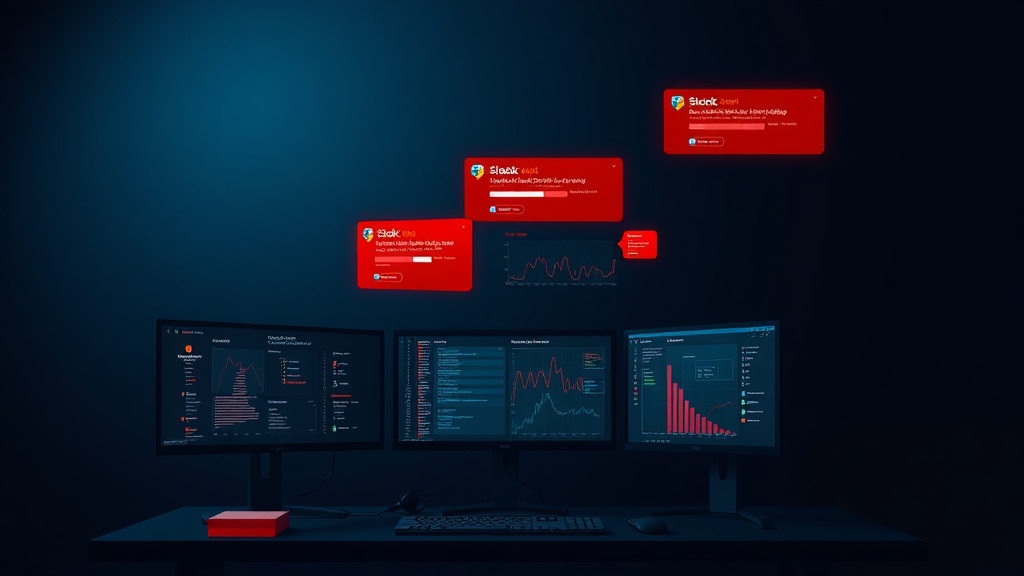
TL;DR: Setting up incident notifications in Slack requires creating incoming webhooks or installing apps, configuring notification channels, and integrating with your monitoring tools. This guide covers three methods: webhooks, Slack apps, and third-party integrations for comprehensive incident management.
Why Slack Notifications Matter for Incident Response
When your systems go down, every second counts. Email notifications can sit unread for hours, and SMS alerts often lack context. Slack notifications solve both problems by delivering instant, rich alerts directly where your team already collaborates.
Modern incident response relies on immediate awareness. A 2026 study by DevOps Research shows that teams using real-time chat notifications reduce mean time to acknowledgment (MTTA) by 67% compared to email-only systems.
Slack's threading, reactions, and integration capabilities make it the perfect hub for coordinating incident response. You can escalate issues, share status updates, and maintain a complete record of your response efforts in one place.
Method 1: Using Slack Incoming Webhooks
Webhooks provide the simplest way to send automated incident notifications to Slack. They're lightweight, reliable, and work with virtually any monitoring system.
Setting Up the Webhook
First, create an incoming webhook in your Slack workspace:
- Visit
https://api.slack.com/appsand click "Create New App" - Choose "From scratch" and name your app (e.g., "Incident Alerts")
- Select your workspace and click "Create App"
- Navigate to "Incoming Webhooks" in the sidebar
- Toggle "Activate Incoming Webhooks" to "On"
- Click "Add New Webhook to Workspace"
- Select your desired channel (create a dedicated
#incidentschannel) - Copy the generated webhook URL
Configuring Notification Format
Structure your webhook payload to include essential incident details:
{
  "channel": "#incidents",
  "username": "Incident Bot",
  "icon_emoji": ":warning:",
  "attachments": [
    {
      "color": "danger",
      "title": "🚨 Critical Incident Detected",
      "fields": [
        {
          "title": "Service",
          "value": "API Gateway",
          "short": true
        },
        {
          "title": "Severity",
          "value": "High",
          "short": true
        },
        {
          "title": "Started",
          "value": "2026-12-15 14:30 UTC",
          "short": true
        }
      ],
      "footer": "Status Dashboard",
      "ts": 1734271800
    }
  ]
}
This format creates visually distinct alerts with structured information that's easy to scan during high-stress situations.
Testing Your Webhook
Use curl to test your webhook configuration:
curl -X POST -H 'Content-type: application/json' \
--data '{"text":"Test incident notification from webhook"}' \
YOUR_WEBHOOK_URL
A successful test confirms your webhook is properly configured and your channel permissions are correct.
Method 2: Building a Custom Slack App
Slack apps offer more sophisticated features than webhooks, including interactive buttons, slash commands, and bidirectional communication.
App Configuration
Return to your Slack app settings and configure additional features:
Under "OAuth & Permissions," add these scopes:
chat:writechat:write.publicchannels:readusers:read
Install the app to your workspace
Copy the "Bot User OAuth Token" for API calls
Interactive Incident Responses
Implement interactive buttons for common incident actions:
{
  "channel": "#incidents",
  "blocks": [
    {
      "type": "section",
      "text": {
        "type": "mrkdwn",
        "text": "🚨 *Critical Database Outage*\nResponse time: >5000ms\nAffected users: ~2,400"
      }
    },
    {
      "type": "actions",
      "elements": [
        {
          "type": "button",
          "text": {
            "type": "plain_text",
            "text": "Acknowledge"
          },
          "style": "primary",
          "action_id": "ack_incident"
        },
        {
          "type": "button",
          "text": {
            "type": "plain_text",
            "text": "Create War Room"
          },
          "action_id": "create_war_room"
        }
      ]
    }
  ]
}
Interactive elements reduce the cognitive load on your response team and standardize common actions.
Implementing Status Updates
Use thread replies for incident updates to maintain conversation context:
# Python example using slack_sdk
from slack_sdk import WebClient

client = WebClient(token="YOUR_BOT_TOKEN")

# Send initial incident notification
response = client.chat_postMessage(
    channel="#incidents",
    text="Database incident in progress",
    thread_ts=None  # Creates new thread
)

# Send update in thread
client.chat_postMessage(
    channel="#incidents",
    text="Update: Failover initiated, ETA 5 minutes",
    thread_ts=response["ts"]  # Replies to original message
)
Method 3: Third-Party Integration Platforms
Integration platforms like Zapier, Microsoft Power Automate, or dedicated monitoring tools can bridge the gap between your monitoring systems and Slack.
Popular Integration Options
Monitoring Tool Integrations:
- Datadog's native Slack integration
- New Relic's webhook notifications
- Grafana's alert manager
- Status page services like Livstat's built-in Slack notifications
Workflow Automation:
- Zapier's monitoring triggers
- Microsoft Power Automate connectors
- IFTTT webhook recipes
Configuration Best Practices
Regardless of your chosen method, follow these configuration guidelines:
Channel Strategy:
Create dedicated channels for different incident types:
#incidents-criticalfor P0/P1 issues#incidents-warningfor P2/P3 issues#incidents-resolvedfor closure notifications
Notification Timing:
Implement smart delays to prevent notification storms:
- Initial alert: Immediate
- Escalation: After 5 minutes without acknowledgment
- Status updates: Every 15 minutes during active incidents
Message Threading:
Use threads for all incident-related communication to maintain clean channel history and enable easy searching.
Advanced Slack Notification Features
User and Role Mentions
Target specific team members based on incident severity and service ownership:
{
  "text": "<@U1234567> <@oncall-backend> Critical API failure detected",
  "link_names": true
}
This ensures the right people receive immediate notifications without overwhelming the entire team.
Rich Media and Context
Include relevant graphs, logs, and dashboard links:
{
  "attachments": [
    {
      "title": "Error Rate Dashboard",
      "title_link": "https://monitoring.example.com/dashboard/errors",
      "image_url": "https://monitoring.example.com/graph/error-rate.png"
    }
  ]
}
Visual context helps responders quickly assess incident severity and potential causes.
Automated Escalation
Implement escalation workflows that automatically notify management or secondary responders:
# Pseudocode for escalation logic
if incident.acknowledged == False and time.now() - incident.created > 300:  # 5 minutes
    notify_slack_channel("#leadership", f"Unacknowledged critical incident: {incident.title}")
    page_secondary_oncall(incident)
Monitoring and Optimizing Your Notifications
Track notification effectiveness with key metrics:
Response Time Metrics:
- Time to first acknowledgment
- Time to incident resolution
- False positive rates
Engagement Analytics:
- Message reaction patterns
- Thread participation rates
- Button click frequencies
Regularly review these metrics to optimize your notification strategy and reduce alert fatigue.
Security Considerations
Protect your incident notification system:
Webhook Security:
- Store webhook URLs as encrypted environment variables
- Rotate webhook URLs quarterly
- Validate incoming webhook requests if accepting external data
App Permissions:
- Use least-privilege principle for bot permissions
- Regular audit installed apps and their scopes
- Monitor app activity logs for suspicious behavior
Data Privacy:
- Avoid including sensitive customer data in notifications
- Use alert IDs instead of direct system information
- Implement proper channel access controls
Conclusion
Effective Slack incident notifications transform your team's response capability. Whether you choose webhooks for simplicity, custom apps for advanced features, or third-party integrations for comprehensive monitoring, the key is consistent, actionable alerts that reach the right people at the right time.
Start with webhooks for immediate results, then evolve to more sophisticated solutions as your incident response processes mature. Your future self will thank you when that 3 AM outage gets resolved in minutes instead of hours.