How to Set Up a Private Status Page for Internal Stakeholders (2026)
Learn how to build a private, access-controlled status page that keeps executives, support teams, and engineers aligned during incidents — without exposing details publicly.
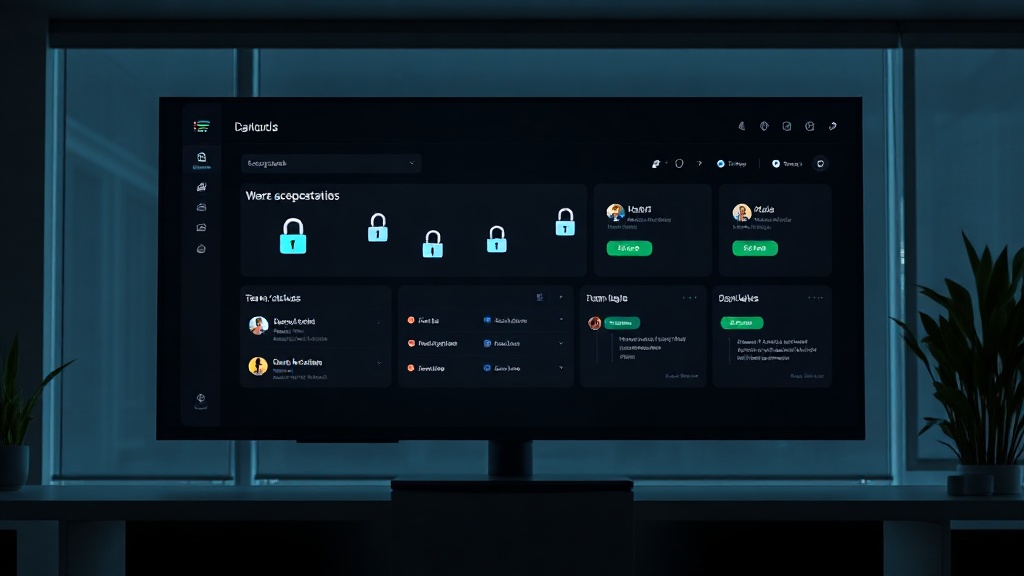
TL;DR: Public status pages are great for customers, but internal stakeholders — execs, support, sales, and on-call engineers — need more detail, faster updates, and restricted access. This guide walks through setting up a private status page in 2026: choosing access controls, structuring incident detail levels, integrating with internal tools, and rolling it out to teams without creating alert noise.
Why You Need a Separate Internal Status Page
Your public status page is designed for customers — simple language, minimal technical detail, and a filtered view of what's actually happening. Internal stakeholders need something different.
A CFO doesn't need paragraph-long root cause analysis, but they do need to know revenue-impacting systems are down before a customer tweets about it. Your support team needs granular detail so they can answer tickets accurately. Engineering leadership needs timeline data to track MTTR trends across quarters.
Trying to serve all these audiences with one public page forces you to either over-share externally or under-inform internally. Neither works. A private status page solves this by giving you a controlled space for full transparency without customer-facing risk.
Who Actually Needs Access
Before building anything, map out your stakeholder groups. In most organizations, that breaks down into:
- Executive leadership — needs high-level impact summaries and business risk context
- Customer support/success — needs real-time detail to respond to inbound tickets
- Sales teams — needs to know about incidents affecting prospects or renewal-sensitive accounts
- Engineering and on-call — needs full technical detail, logs links, and escalation status
- Compliance/security — needs audit trails for incidents tied to data or uptime SLAs
Each group has different tolerance for detail and different urgency thresholds. Design your access tiers around this instead of giving everyone the same view.
Step 1: Choose the Right Access Control Model
A private status page is only as useful as its access controls. In 2026, most status page tools — including Livstat — support several models:
- Password-protected pages — simplest option, good for small teams under 20 people
- SSO/SAML-gated access — ties into your existing identity provider (Okta, Azure AD, Google Workspace) so employees log in with existing credentials
- Email-domain restriction — automatically allows anyone with a company email domain, useful for larger orgs without full SSO rollout
- IP allowlisting — restricts access to office networks or VPN, common for compliance-heavy industries
For most mid-size and enterprise teams, SSO-gated access is the sweet spot in 2026 — it removes password management overhead and gives you an audit log of who viewed what, which matters if your internal page includes security incident data.
Step 2: Decide What Detail Level to Expose
This is where internal pages differ most from public ones. You're not trying to protect your reputation — you're trying to give people enough information to make decisions.
Include on your internal page:
- Full incident timelines with internal timestamps (not just customer-facing milestones)
- Affected internal systems, not just customer-facing services (e.g., internal billing pipeline, admin dashboards)
- Direct links to runbooks, incident channels, and monitoring dashboards
- Named on-call engineer or incident commander for the current incident
- Business impact estimates (revenue at risk, accounts affected, SLA credit exposure)
What you can leave out compared to your public page: heavily sanitized customer-safe language. Internal readers can handle "database replication lag causing 12-minute delay in webhook delivery" — your customers just need "delayed notifications, fix in progress."
Step 3: Structure Incident Severity for Internal Use
Your public page might use three severity tiers. Internally, you likely need more granularity because different teams react differently to different severities.
A practical structure for 2026 internal pages:
- SEV1 — Critical, customer-facing outage: triggers exec notification, support macros activated, sales briefed on at-risk accounts
- SEV2 — Degraded performance, partial impact: support notified, no exec escalation unless duration exceeds 30 minutes
- SEV3 — Internal-only issue, no customer impact: visible on internal page only, engineering tracking, no broader notification
- Maintenance/Planned: scheduled work visible to internal teams days in advance so support isn't blindsided by customer questions
Mapping severity to notification behavior prevents alert fatigue — nobody wants a Slack ping every time a SEV3 internal cache issue pops up.
Step 4: Integrate With Tools Your Teams Already Use
A private status page that requires people to remember to check it will get ignored within a month. Integration is what makes it sticky.
- Slack/Microsoft Teams — push incident updates into dedicated internal channels automatically
- PagerDuty/Opsgenie — sync incident status so on-call engineers don't have to update two systems
- CRM (Salesforce, HubSpot) — flag at-risk accounts when an incident affects services tied to specific customer segments
- Internal wikis/Notion — auto-link postmortems once resolved so the knowledge base stays current
Livstat supports webhook-based integrations that let you pipe incident data into these tools without manual copy-paste, which keeps your private page as the single source of truth rather than one of five conflicting update threads.
Step 5: Build the Page Itself
Here's a straightforward setup sequence:
- Create a new status page instance separate from your public-facing one
- Enable access control (SSO recommended) and add your employee domain or identity provider
- Add internal-only components: infrastructure layers, internal tools, third-party dependencies you rely on
- Configure severity tiers and notification rules per stakeholder group
- Connect monitoring sources so incidents can auto-populate rather than requiring manual entry
- Set up a subscriber list segmented by team (exec, support, engineering) so notifications match relevance
- Run a test incident to confirm access controls work and notifications reach the right channels
Step 6: Roll It Out Without Creating Noise
The biggest failure mode for internal status pages isn't technical — it's adoption. Teams default back to Slack threads and email chains if the page doesn't feel faster than existing habits.
To drive adoption:
- Make the page the required first stop during incident declaration — bake it into your incident response playbook
- Set a rule that nobody pings execs directly during an incident; direct them to the page instead
- Review page usage monthly — if support isn't checking it, ask why and fix the friction
Teams that treat the internal status page as the canonical incident record — rather than a nice-to-have — see meaningfully faster cross-team response times, because nobody's waiting on a manually typed update in a side channel.
Key Takeaway
A private status page isn't just a smaller version of your public one — it's a different tool built for a different audience with different information needs. Get the access controls, severity structure, and integrations right, and you turn incident response from a scramble of Slack pings into a coordinated, single-source-of-truth process that every stakeholder trusts.