How to Set Up Status Page Integrations with Microsoft Teams
Learn to connect your status page with Microsoft Teams for instant incident notifications. Get step-by-step setup instructions and best practices for 2026.
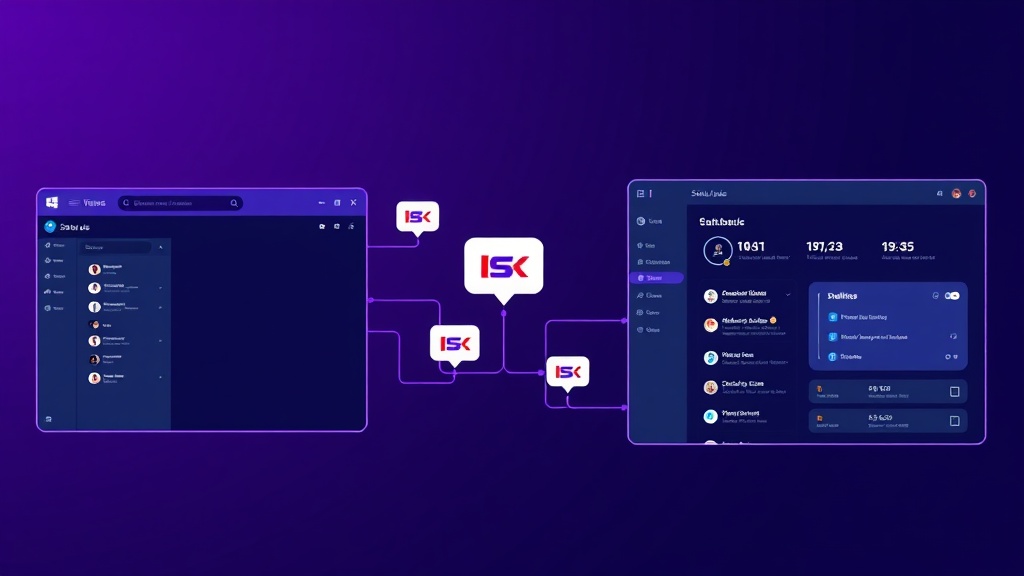
TL;DR: Setting up Microsoft Teams integration with your status page ensures your team gets instant notifications about incidents and maintenance. This guide covers webhook configuration, channel setup, message formatting, and advanced automation workflows to keep your team informed in real-time.
Why Microsoft Teams Integration Matters for Your Status Page
Your status page serves as the single source of truth for service availability, but it's only effective if the right people know when something goes wrong. Microsoft Teams integration bridges this gap by delivering instant notifications directly to your team's workspace.
In 2026, the average incident response time for companies using integrated notifications is 40% faster than those relying on manual monitoring. When your status page automatically posts to Teams channels, your engineers can start troubleshooting before customers even notice an issue.
Prerequisites for Teams Integration
Before diving into the setup process, ensure you have the necessary permissions and access:
- Administrator or owner permissions in your Microsoft Teams workspace
- Access to create and configure incoming webhooks
- Admin access to your status page platform
- Understanding of which Teams channels should receive different types of notifications
Most modern status page providers, including platforms like Livstat, offer native Teams integration that simplifies this process significantly.
Step 1: Create Incoming Webhooks in Microsoft Teams
Start by setting up the receiving end of your integration within Microsoft Teams.
Setting Up Your Webhook
Navigate to the Teams channel where you want to receive status updates. Click the three dots next to the channel name and select "Connectors" or "Workflows" depending on your Teams version.
Search for "Incoming Webhook" and click "Add" or "Configure." Give your webhook a descriptive name like "Status Page Notifications" and optionally upload a custom icon.
Teams will generate a unique webhook URL that looks like: https://outlook.office.com/webhook/your-unique-id
Copy this URL immediately and store it securely. You'll need it for the next step.
Channel Strategy
Consider creating separate webhooks for different notification types:
- #incidents - Critical service disruptions
- #maintenance - Scheduled maintenance windows
- #status-updates - General service status changes
- #performance - Performance degradation alerts
This approach prevents notification fatigue and ensures relevant teams see the most important updates.
Step 2: Configure Your Status Page Integration
Once you have your webhook URLs, configure your status page to send notifications to Teams.
Basic Integration Setup
In your status page dashboard, navigate to the integrations or notifications section. Look for Microsoft Teams or webhook options.
Paste your webhook URL into the designated field. Most platforms allow you to customize which events trigger notifications:
- Incident creation and updates
- Service status changes
- Maintenance window announcements
- Resolution confirmations
Message Formatting Options
Configure how your notifications appear in Teams. Effective status page messages should include:
- Clear severity indicators (Critical, Major, Minor)
- Affected services with specific component names
- Impact description in plain language
- Estimated resolution time when available
- Direct links to your full status page
Step 3: Advanced Configuration and Automation
Conditional Notifications
Set up intelligent filtering to reduce noise. Configure your integration to:
- Send immediate notifications for critical incidents
- Batch minor updates into summary messages
- Skip notifications for pre-announced maintenance
- Escalate if incidents remain unresolved after specific timeframes
Rich Card Formatting
Modern Teams integrations support rich message cards that display structured information. Configure your cards to include:
- Status badges with color coding
- Affected service lists
- Action buttons for quick responses
- Timeline information
Multi-Team Routing
For larger organizations, implement routing rules that send specific incident types to relevant teams:
- Database issues → Database team channel
- API problems → Backend engineering channel
- Frontend issues → UI/UX team channel
- Infrastructure problems → DevOps team channel
Step 4: Testing Your Integration
Always test your integration thoroughly before relying on it during actual incidents.
Test Scenarios
- Create a test incident on your status page and verify the Teams notification appears correctly
- Update the incident status and confirm Teams receives the update
- Resolve the test incident and check that the resolution notification is sent
- Test maintenance announcements to ensure they format properly
Schedule these tests during low-activity periods and inform your team beforehand to avoid confusion.
Validation Checklist
- Notifications appear in the correct channels
- Message formatting is clear and actionable
- Links to the status page work correctly
- Severity levels display with appropriate visual indicators
- Team mentions work for escalation scenarios
Best Practices for Teams Status Page Integration
Message Content Guidelines
Keep your automated messages concise but informative. Include:
- What happened in one clear sentence
- Which services are affected
- Current status and any workarounds
- Next update timeline
Avoid technical jargon that might confuse non-technical team members who see these notifications.
Notification Timing
Balance speed with accuracy. Send immediate notifications for confirmed incidents, but avoid false alarms from temporary blips. Consider implementing a brief delay (30-60 seconds) for minor alerts to filter out transient issues.
Follow-up Workflows
Automate follow-up actions beyond the initial notification:
- Create incident response threads automatically
- Schedule reminder messages for long-running incidents
- Post resolution summaries with impact metrics
- Generate post-incident discussion prompts
Troubleshooting Common Integration Issues
Messages Not Appearing
If notifications aren't reaching Teams:
- Verify webhook URLs are correctly copied without extra characters
- Check that the webhook hasn't been disabled in Teams
- Confirm your status page integration is active and properly configured
- Test with a manual webhook call to isolate the issue
Formatting Problems
For message formatting issues:
- Review your JSON payload structure
- Test different message card formats
- Ensure special characters are properly escaped
- Validate that all required fields are included
Permission Errors
Webhook permission problems typically indicate:
- Insufficient Teams permissions for the webhook creator
- Expired authentication tokens
- Changes to channel permissions after setup
- Organization-level restrictions on external integrations
Measuring Integration Effectiveness
Track key metrics to ensure your Teams integration improves incident response:
- Time to acknowledgment - How quickly team members respond to notifications
- Response accuracy - Whether teams act on the right information
- False positive rate - Frequency of unnecessary alerts
- Coverage gaps - Incidents that didn't trigger appropriate notifications
Regularly review these metrics and adjust your configuration to optimize performance.
Conclusion
Integrating your status page with Microsoft Teams transforms passive monitoring into active incident response. By following this setup process, you'll ensure your team receives timely, actionable notifications that accelerate problem resolution.
Remember to test regularly, refine your notification rules based on team feedback, and maintain your webhook configurations as your Teams structure evolves. A well-configured integration becomes an essential part of your incident response toolkit, keeping everyone informed and ready to act when service issues arise.