How to Set Up Incident Notification Workflows with Discord
Learn to create automated Discord incident notifications that keep your team informed during outages. Configure webhooks, customize alerts, and build workflows for faster incident response.
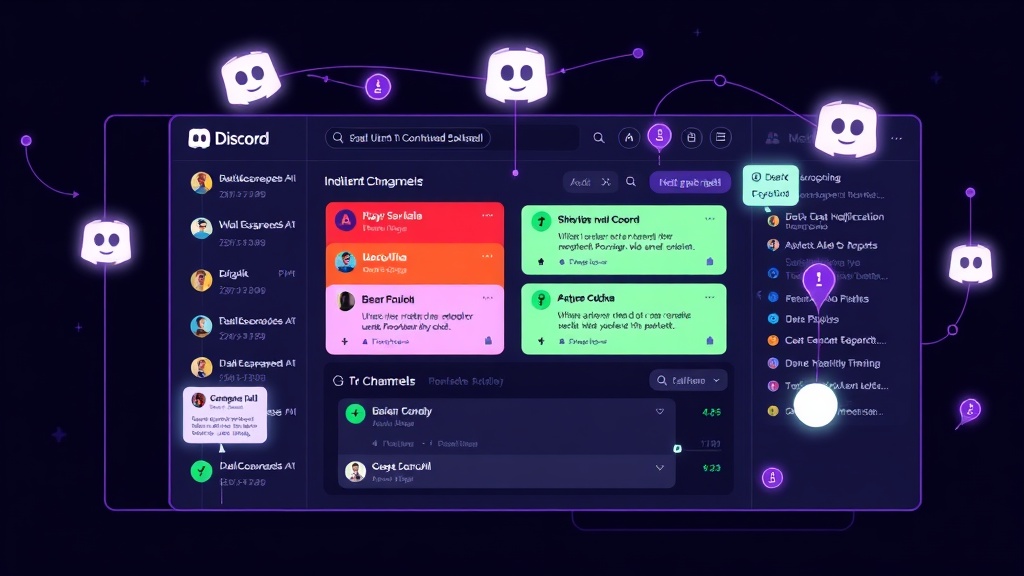
TL;DR: Set up Discord incident notification workflows by creating webhooks, configuring automated alerts, and establishing escalation channels. This guide covers webhook creation, message formatting, role-based notifications, and integration with monitoring tools for comprehensive incident response.
Why Discord for Incident Management?
Discord has evolved far beyond gaming to become a powerful communication platform for development teams. Its real-time messaging, voice channels, and robust webhook system make it ideal for incident notifications.
Unlike traditional communication tools, Discord offers persistent voice channels where your on-call team can instantly jump into troubleshooting discussions. The platform's threading capabilities help maintain organized incident communication without cluttering main channels.
Most importantly, Discord webhooks are incredibly reliable and fast, ensuring your team receives critical alerts within seconds of detection.
Setting Up Discord Webhooks for Incidents
Creating Your Incident Channel Structure
Start by organizing your Discord server with dedicated incident channels:
#incidents-critical- P0/P1 severity incidents#incidents-major- P2 severity incidents#incidents-minor- P3/P4 severity incidents#incident-discussion- Team coordination and updates
Create separate channels based on severity to prevent alert fatigue and ensure the right people see the right notifications.
Generating Discord Webhooks
For each incident channel, you'll need to create a webhook:
- Navigate to your incident channel settings
- Click "Integrations" then "Webhooks"
- Select "New Webhook"
- Name it descriptively (e.g., "Critical Incidents Bot")
- Copy the webhook URL - you'll need this for configuration
Store these webhook URLs securely. Anyone with access can send messages to your channels.
Configuring Automated Incident Alerts
Webhook Message Structure
Discord webhooks accept JSON payloads with rich formatting options. Here's a basic incident notification structure:
{
  "username": "Incident Bot",
  "avatar_url": "https://your-domain.com/incident-bot-avatar.png",
  "embeds": [{
    "title": "🚨 CRITICAL INCIDENT - Service Outage",
    "description": "API Gateway experiencing high error rates",
    "color": 15158332,
    "fields": [
      {
        "name": "Severity",
        "value": "P1 - Critical",
        "inline": true
      },
      {
        "name": "Affected Services",
        "value": "User Authentication, Payment Processing",
        "inline": true
      },
      {
        "name": "Status Page",
        "value": "[View Updates](https://status.yourcompany.com)",
        "inline": false
      }
    ],
    "timestamp": "2026-01-15T10:30:00.000Z"
  }]
}
Color Coding by Severity
Use consistent colors to help teams quickly identify incident severity:
- Critical (P0/P1): Red (
15158332) - Major (P2): Orange (
16753920) - Minor (P3/P4): Yellow (
16776960) - Resolved: Green (
5763719)
Implementing Role-Based Notifications
Discord's role system enables targeted notifications. Configure your webhooks to mention specific roles based on incident type:
@on-call-engineerfor all incidents@database-teamfor database-related issues@security-teamfor potential security incidents
Include role mentions in your webhook payload:
{
  "content": "<@&role_id> New critical incident requires immediate attention",
  "embeds": [...]
}
Building Comprehensive Notification Workflows
Multi-Stage Escalation Process
Create a workflow that escalates notifications based on response time:
- Initial Alert (T+0): Send to appropriate severity channel
- Escalation 1 (T+5 min): Mention on-call engineer if no acknowledgment
- Escalation 2 (T+15 min): Notify team lead and create voice channel
- Escalation 3 (T+30 min): Alert management and external stakeholders
Automated Status Updates
Configure your monitoring system to send progress updates to Discord:
- Service restoration notifications
- Performance metric improvements
- Resolution confirmations
This keeps everyone informed without requiring manual updates during high-stress incidents.
Integration with Status Pages
When using status page tools like Livstat, connect your Discord notifications to status page updates. This ensures your internal team knows immediately when public communications are posted, maintaining consistency between internal and external messaging.
Advanced Discord Workflow Features
Slash Commands for Incident Management
Create custom Discord bots with slash commands to streamline incident response:
/incident create- Start new incident tracking/incident update- Post status updates/incident resolve- Mark incidents as resolved/incident escalate- Manually trigger escalation
These commands can integrate directly with your incident management systems, updating tickets and status pages simultaneously.
Voice Channel Automation
For critical incidents, automatically create temporary voice channels where responders can coordinate. Configure your bot to:
- Generate unique voice channels per incident
- Set appropriate permissions for incident responders
- Archive channels after incident resolution
- Maintain text logs of voice channel activity
Historical Incident Tracking
Use Discord's threading feature to maintain incident histories. Create threads for each incident containing:
- Timeline of events
- Actions taken
- Resolution steps
- Post-mortem links
This creates a searchable knowledge base for future incident response.
Integration Best Practices
Rate Limiting and Alert Fatigue
Discord webhooks have rate limits (50 requests per second per webhook). Implement intelligent batching to avoid:
- Duplicate notifications for the same incident
- Spam from flapping services
- Overwhelming team members with alerts
Group related alerts and use summary messages during widespread outages.
Security Considerations
Protect your Discord incident workflows:
- Restrict webhook URLs to authorized systems only
- Use Discord's audit logs to monitor webhook usage
- Implement webhook signature verification where possible
- Regularly rotate webhook URLs for sensitive channels
Testing and Validation
Regularly test your Discord notification workflows:
- Schedule monthly fire drills
- Verify all webhook endpoints respond correctly
- Test escalation timing and role mentions
- Validate integration with your monitoring stack
Measuring Workflow Effectiveness
Track key metrics to optimize your Discord incident workflows:
- Mean Time to Acknowledgment (MTTA): How quickly team members respond to Discord alerts
- Escalation Success Rate: Percentage of incidents resolved without reaching final escalation
- Channel Engagement: Active participation in incident channels
- Resolution Communication: Time between incident resolution and team notification
Conclusion
Discord incident notification workflows provide real-time communication capabilities that traditional tools often lack. By implementing structured channels, automated webhooks, and intelligent escalation processes, you create a responsive incident management system that keeps your team coordinated during critical outages.
The key to success lies in thoughtful channel organization, consistent message formatting, and regular testing of your notification workflows. When properly configured, Discord becomes a powerful hub that transforms chaotic incident response into organized, efficient problem-solving.