How to Set Up Incident Notifications with PagerDuty (2026 Guide)
Learn to configure PagerDuty incident notifications for faster response times. Complete setup guide with escalation policies and integration tips.
TL;DR: PagerDuty incident notifications ensure your team responds to critical issues within minutes, not hours. This guide covers service setup, escalation policies, notification channels, and integration best practices to minimize downtime in 2026.
Why PagerDuty Incident Notifications Matter
Every minute of downtime costs money. Studies show that the average cost of IT downtime reached $5,600 per minute in 2026, making rapid incident response more critical than ever.
PagerDuty transforms chaotic incident management into structured, automated workflows. Instead of relying on someone to notice an issue and manually alert the team, PagerDuty ensures the right people get notified immediately through their preferred channels.
The platform's intelligent routing prevents notification fatigue while guaranteeing critical alerts reach someone who can act.
Prerequisites and Account Setup
Before diving into configuration, ensure you have admin access to your PagerDuty account. If you're starting fresh, sign up for a PagerDuty trial at pagerduty.com.
You'll also need to identify your incident response team structure. Map out who should receive alerts first, who serves as backup, and what constitutes different severity levels in your organization.
Gather the contact information for all team members, including email addresses, phone numbers, and preferred communication apps like Slack or Microsoft Teams.
Creating Your First Service
Services in PagerDuty represent the systems you want to monitor. Think of them as containers that group related alerts together.
Navigate to Services in your PagerDuty dashboard and click New Service. Give your service a descriptive name like "Production API" or "E-commerce Website."
Choose an escalation policy (we'll create this next) and select your integration type. PagerDuty supports over 700 integrations, including popular monitoring tools like Datadog, New Relic, and Prometheus.
For the acknowledgment timeout, set a realistic window based on your team's response expectations. Most teams use 30 minutes for critical services and 60 minutes for less critical systems.
Setting Up Escalation Policies
Escalation policies define who gets notified when and how quickly alerts escalate if nobody responds. This is where PagerDuty's true power shines.
Go to People > Escalation Policies and click New Escalation Policy. Start with a descriptive name that indicates the service or team it covers.
Create your first escalation level by adding primary on-call team members. Set the escalation timeout—typically 15-30 minutes depending on your SLA requirements.
Add a second escalation level with backup team members or managers. Many organizations include a final escalation level that pages multiple people simultaneously for truly critical issues.
Consider creating separate escalation policies for different severity levels. Your payment processing system might need 5-minute escalation windows, while a marketing website could use 30-minute windows.
Configuring Notification Methods
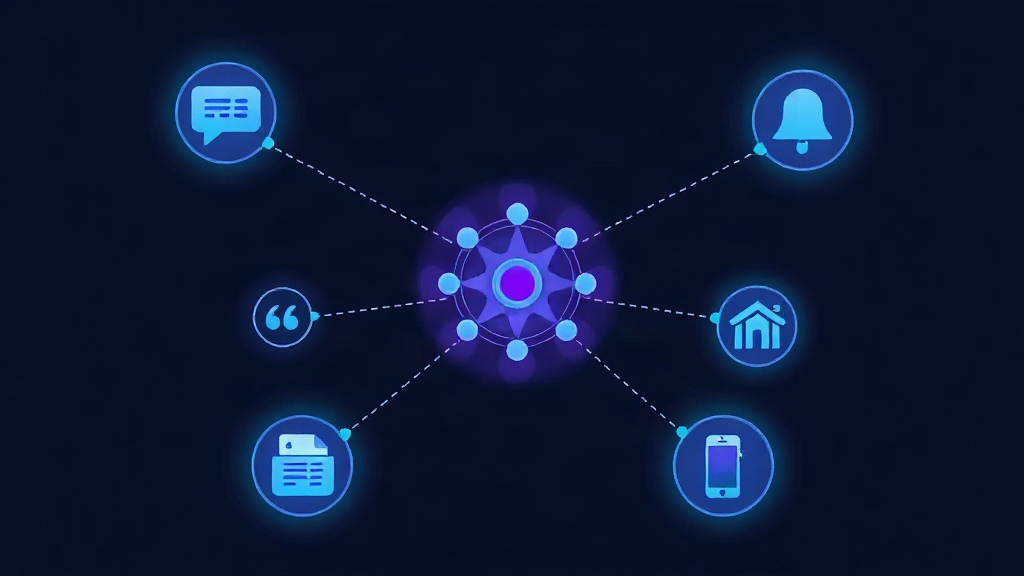
PagerDuty excels at reaching people through multiple channels simultaneously. Each team member should configure at least three notification methods for redundancy.
Phone Notifications
Add phone numbers under My Profile > Contact Information. Configure both SMS and voice call options. Voice calls are particularly effective for waking up on-call engineers during night incidents.
Set notification delays strategically. Many teams use immediate SMS followed by a phone call after 5 minutes if the alert isn't acknowledged.
Email Notifications
While email shouldn't be your only notification method, it provides a written record and works well for low-priority alerts. Configure a dedicated email address for PagerDuty notifications to prevent them from getting lost in regular inbox clutter.
Mobile App Notifications
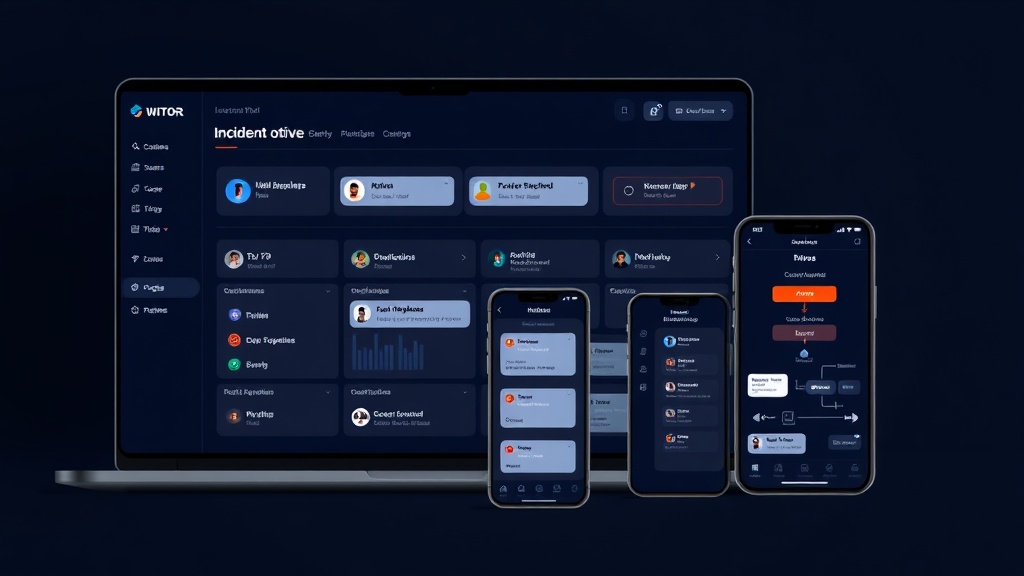
The PagerDuty mobile app sends push notifications and allows incident management from anywhere. Enable critical app permissions and test notifications regularly.
Configure the app to override "Do Not Disturb" settings for high-severity incidents. This ensures alerts break through even when phones are silenced.
Advanced Notification Rules
PagerDuty's notification rules let you customize when and how you receive different types of alerts.
Create rules based on urgency levels. High-urgency incidents might trigger immediate phone calls, while low-urgency issues send email notifications during business hours only.
Set up time-based rules that adjust notification behavior based on schedules. You might want SMS during work hours but phone calls during off-hours when you're less likely to see messages immediately.
Use contact method ordering to define fallback options. If someone doesn't respond to SMS within 10 minutes, PagerDuty can automatically call their phone.
Integrating with Monitoring Tools
PagerDuty's strength lies in its integration ecosystem. Most monitoring tools can send alerts directly to PagerDuty services.
Popular Monitoring Integrations
For application monitoring, tools like Datadog and New Relic integrate seamlessly. Configure these tools to send alerts with appropriate severity levels and detailed context.
Infrastructure monitoring tools like Nagios and Zabbix also integrate well. Map your existing alert conditions to PagerDuty's urgency levels for consistent incident prioritization.
Many teams also integrate their status page tools—platforms like Livstat can automatically create PagerDuty incidents when uptime monitors detect outages, ensuring both internal notification and external communication happen simultaneously.
Custom Integrations
Use PagerDuty's Events API for custom applications. This RESTful API accepts JSON payloads and can trigger, acknowledge, or resolve incidents programmatically.
Webhooks provide another integration path. Configure your internal tools to POST incident data to PagerDuty webhook URLs when specific conditions are met.
Testing Your Notification Setup
Regular testing prevents notification failures during real incidents. PagerDuty provides several testing mechanisms.
Use the Test button in your escalation policy to send test notifications without creating actual incidents. This verifies that contact methods work and team members receive alerts as expected.
Schedule monthly notification drills where you create test incidents during different times of day. This helps identify issues with after-hours notification delivery.
Test escalation flows by creating incidents and deliberately not acknowledging them. Verify that alerts properly escalate to secondary team members within your defined timeframes.
Best Practices for Incident Notifications
Alert Fatigue Prevention
Too many notifications reduce response effectiveness. Configure intelligent alert grouping to combine related alerts into single incidents.
Use PagerDuty's suppression rules to prevent duplicate notifications for known issues. If your database is down, you don't need separate alerts for every dependent service.
Implement proper alert prioritization. Not every issue requires immediate phone calls—save high-urgency notifications for truly critical problems.
Response Time Optimization
Configure acknowledgment timeouts based on realistic response expectations. Setting 5-minute timeouts when your team typically needs 15 minutes creates unnecessary stress.
Use intelligent notification scheduling that considers team members' time zones and work patterns. PagerDuty can automatically route alerts to team members who are most likely to be available.
Create on-call schedules that rotate fairly and provide adequate coverage. Burned-out engineers respond slower and make more mistakes.
Monitoring and Improving Your Setup
PagerDuty provides detailed analytics on notification delivery and response times. Review these metrics monthly to identify improvement opportunities.
Track key metrics like mean time to acknowledge (MTTA) and mean time to resolve (MTTR). Improving these numbers directly reduces downtime impact.
Analyze notification failure patterns. If team members frequently miss SMS alerts but respond quickly to phone calls, adjust your notification methods accordingly.
Regularly review and update your escalation policies as your team structure changes. Outdated contact information or departed team members can break your entire notification chain.
Conclusion
Effective PagerDuty incident notifications transform chaotic emergency responses into structured, reliable workflows. By properly configuring services, escalation policies, and notification methods, you ensure critical issues reach the right people within minutes of occurrence.
The key to success lies in regular testing, continuous optimization based on real incident data, and maintaining current contact information. Remember that the best notification system is worthless if it's not properly maintained and tested.
Start with basic configurations and gradually add complexity as your team becomes comfortable with the platform. Focus on reliability over fancy features—when production is down, you need notifications that work every time.