How to Set Up Incident Notifications with Google Chat in 2026
Learn to configure automated incident notifications in Google Chat using webhooks, bots, and third-party integrations. Step-by-step guide with examples.
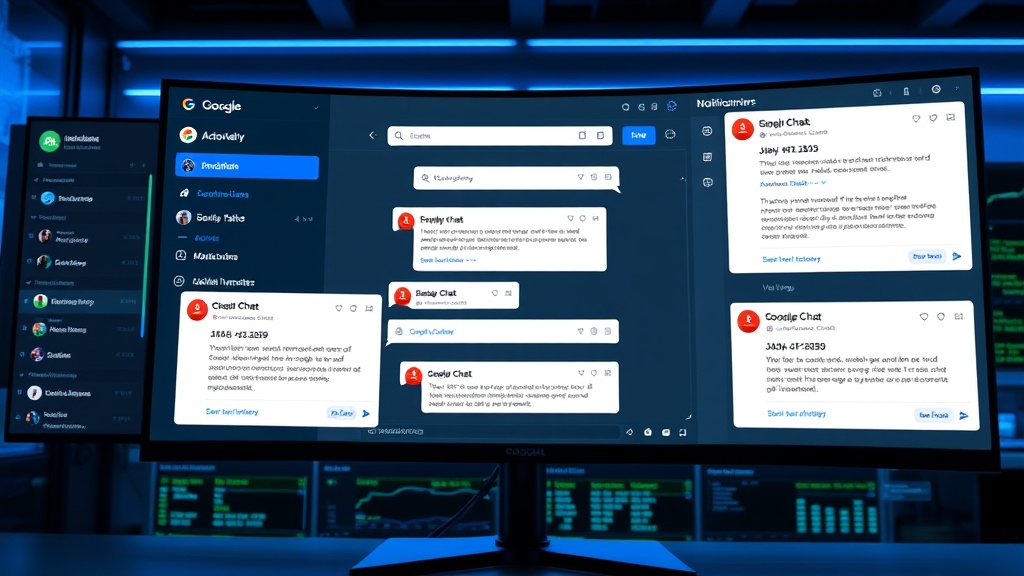
TL;DR: Setting up incident notifications in Google Chat requires configuring webhooks, using Google Chat API, or integrating with monitoring tools. This guide covers three methods: direct webhooks for simple alerts, Chat API for advanced notifications, and third-party platform integrations for comprehensive incident management.
Why Google Chat for Incident Notifications?
Google Chat has become a critical communication hub for DevOps teams in 2026. Unlike traditional email alerts that get buried in inboxes, Chat notifications appear instantly and allow for immediate collaboration.
The platform's integration with Google Workspace makes it particularly attractive for teams already using Gmail, Drive, and other Google services. You can create dedicated incident response spaces, thread conversations by incident type, and maintain searchable incident histories.
Method 1: Direct Webhook Integration
The simplest approach uses Google Chat webhooks to send incident notifications directly from your monitoring system.
Creating a Google Chat Webhook
First, you'll need to create an incoming webhook for your Google Chat space:
- Open Google Chat and navigate to your incident response space
- Click the space name dropdown and select "Manage webhooks"
- Click "Add webhook" and provide a name like "Incident Alerts"
- Copy the generated webhook URL (it starts with
https://chat.googleapis.com/v1/spaces/)
Configuring Your Monitoring Tool
Most monitoring platforms support webhook notifications. Here's how to configure common scenarios:
For custom monitoring scripts:
curl -X POST 'YOUR_WEBHOOK_URL' \
-H 'Content-Type: application/json' \
-d '{
  "text": "🚨 INCIDENT: Database connection timeout\nSeverity: High\nAffected Service: User Authentication\nTime: $(date)"
}'
For application alerts:
You can trigger notifications programmatically when your application detects issues:
import requests
import json

def send_incident_alert(severity, service, description):
    webhook_url = "YOUR_WEBHOOK_URL"

    message = {
        "text": f"🔴 {severity.upper()} INCIDENT\n"
                f"Service: {service}\n"
                f"Description: {description}\n"
                f"Dashboard: https://status.yourcompany.com"
    }

    response = requests.post(webhook_url, json=message)
    return response.status_code == 200
Method 2: Google Chat API Integration
For more sophisticated notifications with rich formatting and interactive elements, use the Google Chat API directly.
Setting Up API Access
- Visit the Google Cloud Console and create a new project or select an existing one
- Enable the Google Chat API for your project
- Create service account credentials and download the JSON key file
- Add the service account to your Google Chat space
Building Rich Incident Cards
The Chat API supports card-based messages that provide structured incident information:
from googleapiclient.discovery import build
from google.oauth2 import service_account

def send_incident_card(incident_data):
    credentials = service_account.Credentials.from_service_account_file(
        'path/to/service-account-key.json',
        scopes=['https://www.googleapis.com/auth/chat.bot']
    )

    service = build('chat', 'v1', credentials=credentials)

    card_message = {
        'cards': [{
            'sections': [{
                'widgets': [
                    {
                        'keyValue': {
                            'topLabel': 'Incident ID',
                            'content': incident_data['id'],
                            'icon': 'STAR'
                        }
                    },
                    {
                        'keyValue': {
                            'topLabel': 'Severity',
                            'content': incident_data['severity'],
                            'icon': 'CLOCK'
                        }
                    },
                    {
                        'buttons': [{
                            'textButton': {
                                'text': 'VIEW STATUS PAGE',
                                'onClick': {
                                    'openLink': {
                                        'url': 'https://status.yourcompany.com'
                                    }
                                }
                            }
                        }]
                    }
                ]
            }]
        }]
    }

    request = service.spaces().messages().create(
        parent='spaces/SPACE_ID',
        body=card_message
    )

    return request.execute()
Method 3: Third-Party Integration Platforms
For teams using comprehensive monitoring solutions, integrating through platforms like Zapier, Microsoft Power Automate, or direct API connections provides the most flexibility.
Monitoring Platform Integration
Most modern monitoring tools include Google Chat as a native notification channel:
Prometheus with Alertmanager:
Configure your alertmanager.yml to include Google Chat webhooks:
route:
  routes:
  - match:
      severity: critical
    receiver: google-chat-critical

receivers:
- name: 'google-chat-critical'
  webhook_configs:
  - url: 'YOUR_WEBHOOK_URL'
    send_resolved: true
    title: 'Critical Alert'
    text: '{{ range .Alerts }}{{ .Annotations.summary }}{{ end }}'
Grafana Integration:
- Navigate to Alerting > Notification channels in Grafana
- Select "Google Hangouts Chat" as the type
- Enter your webhook URL and customize the message template
- Test the integration to ensure notifications work correctly
Best Practices for Google Chat Incident Notifications
Message Structure and Formatting
Structure your incident notifications for maximum clarity:
- Lead with severity level using emojis (🔴 Critical, 🟡 Warning, 🟢 Resolved)
- Include essential details like affected services, start time, and impact
- Provide direct links to your status page, monitoring dashboards, or incident response documentation
- Use threading for follow-up updates to keep the main channel clean
Notification Timing and Frequency
Avoid notification fatigue by implementing smart filtering:
- Set up escalation rules based on incident duration
- Group similar alerts within time windows (5-10 minutes)
- Send resolution notifications to confirm incident closure
- Configure "quiet hours" for non-critical alerts
Team Coordination Features
Leverage Google Chat's collaboration features during incidents:
- Create dedicated incident response spaces for major outages
- Use @mentions to alert specific team members or on-call engineers
- Pin important messages with incident status updates
- Integrate with Google Meet for emergency video calls
Integration with Status Page Systems
If you're using a status page platform like Livstat, you can create a seamless notification workflow that updates both your Google Chat channels and public status page simultaneously.
Many status page providers offer webhook integrations that can trigger Google Chat notifications when incidents are created, updated, or resolved through their systems.
Troubleshooting Common Issues
Webhook Authentication Errors
If your webhooks aren't delivering messages:
- Verify the webhook URL is correctly copied (they're case-sensitive)
- Ensure your Google Chat space allows external integrations
- Check that webhook permissions haven't been revoked
Message Formatting Problems
For malformed messages or missing content:
- Validate JSON syntax in your webhook payloads
- Test message formatting with simple text before adding complexity
- Review Google Chat API documentation for supported markdown syntax
Rate Limiting
Google Chat enforces rate limits on API calls:
- Implement exponential backoff for failed requests
- Batch similar notifications when possible
- Monitor your API usage through Google Cloud Console
Measuring Notification Effectiveness
Track key metrics to optimize your incident notification system:
- Time to acknowledgment: How quickly team members respond to incident notifications
- False positive rate: Percentage of notifications that weren't actual incidents
- Resolution time: Compare incident resolution times before and after implementing Chat notifications
Regularly review these metrics and adjust your notification rules to improve signal-to-noise ratio.
Conclusion
Google Chat incident notifications provide a powerful way to keep your team informed during outages and system issues. Whether you choose simple webhooks for basic alerts or implement rich API integrations for comprehensive incident management, the key is creating a system that delivers the right information to the right people at the right time.
Start with webhook integration for immediate results, then evolve toward API-based solutions as your incident response processes mature. Remember that the best notification system is one your team actually uses and trusts during high-pressure situations.