How to Set Up Incident Notifications with Opsgenie in 2026
Learn to configure Opsgenie incident notifications with step-by-step integration guides, escalation policies, and alerting best practices for reliable incident response.
TL;DR: Opsgenie provides powerful incident notification capabilities through integrations, escalation policies, and notification rules. This guide covers setting up monitoring tool integrations, configuring team-based escalations, customizing notification preferences, and implementing advanced routing rules for effective incident response in 2026.
Understanding Opsgenie's Notification Architecture
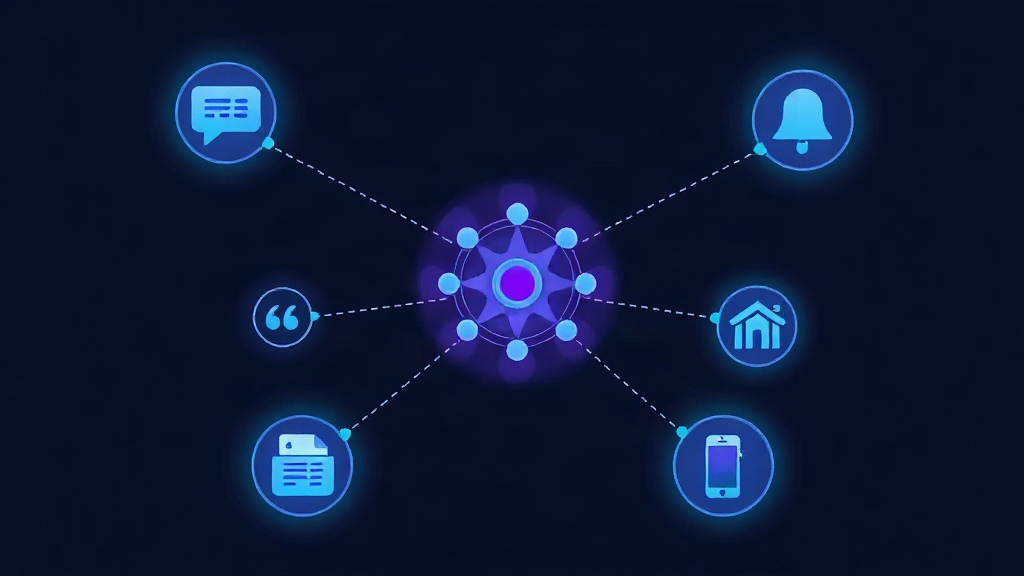
Opsgenie's notification system operates on a multi-layered approach that combines integrations, teams, escalation policies, and notification rules. This architecture ensures that the right people receive alerts at the right time through their preferred channels.
The platform supports over 200 integrations with monitoring tools, making it a versatile choice for diverse tech stacks. Whether you're using Prometheus, Datadog, New Relic, or custom webhook solutions, Opsgenie can aggregate and intelligently route your incidents.
Unlike simpler alerting tools, Opsgenie provides context-aware routing based on team schedules, escalation hierarchies, and incident severity levels.
Setting Up Your First Integration
Configuring Webhook Integrations
Start by navigating to the Integrations section in your Opsgenie dashboard. Click "Add Integration" and select "Webhook" for maximum flexibility with custom monitoring solutions.
Generate your unique webhook URL and note the API key. This URL will receive JSON payloads from your monitoring systems. Configure your monitoring tool to send POST requests to this endpoint when incidents occur.
Test the integration by sending a sample payload. Opsgenie will automatically parse common fields like title, description, priority, and tags from your JSON structure.
Popular Monitoring Tool Integrations
For Prometheus users, install the Opsgenie integration through the Alertmanager configuration. Add the webhook receiver to your alertmanager.yml file:
receivers:
- name: 'opsgenie'
  webhook_configs:
  - url: 'https://api.opsgenie.com/v1/json/prometheus'
    api_key: 'your-api-key'
Datadog integration requires configuring a webhook in your Datadog monitors. Navigate to Integrations > Webhooks and add your Opsgenie endpoint URL with the appropriate headers for authentication.
AWS CloudWatch alarms integrate directly through SNS topics. Create an SNS topic, subscribe your Opsgenie webhook URL, and configure your CloudWatch alarms to publish to this topic.
Creating Effective Team Structure
Organizing Teams by Responsibility
Create teams that mirror your organizational structure and incident response responsibilities. Frontend teams should handle UI-related incidents, while backend teams manage API and database issues.
Assign team members with clear primary and secondary contact designations. Primary contacts receive immediate notifications, while secondary contacts serve as backup during escalations.
Each team should have at least three members to ensure coverage during vacations, sick days, or high-incident periods. This redundancy prevents single points of failure in your notification chain.
Configuring Team Schedules
Set up rotation schedules that reflect your team's actual availability. Use Opsgenie's schedule builder to create weekly rotations, ensuring 24/7 coverage for critical systems.
Consider time zones when creating schedules for distributed teams. Opsgenie automatically handles timezone conversions, but verify that handoff times align with team preferences.
Implement override capabilities for team members who need to swap shifts or provide temporary coverage during peak periods or planned maintenance windows.
Building Escalation Policies
Multi-Level Escalation Rules
Create escalation policies that progress through multiple levels of response. Start with the primary on-call engineer, escalate to team leads after 10 minutes, and involve management after 30 minutes for critical incidents.
Configure different escalation timelines based on incident severity. P0 incidents might escalate every 5 minutes, while P2 incidents can wait 15-20 minutes between escalation steps.
Include multiple notification methods at each escalation level. Combine phone calls, SMS messages, push notifications, and email to ensure message delivery across different scenarios.
Advanced Routing Rules
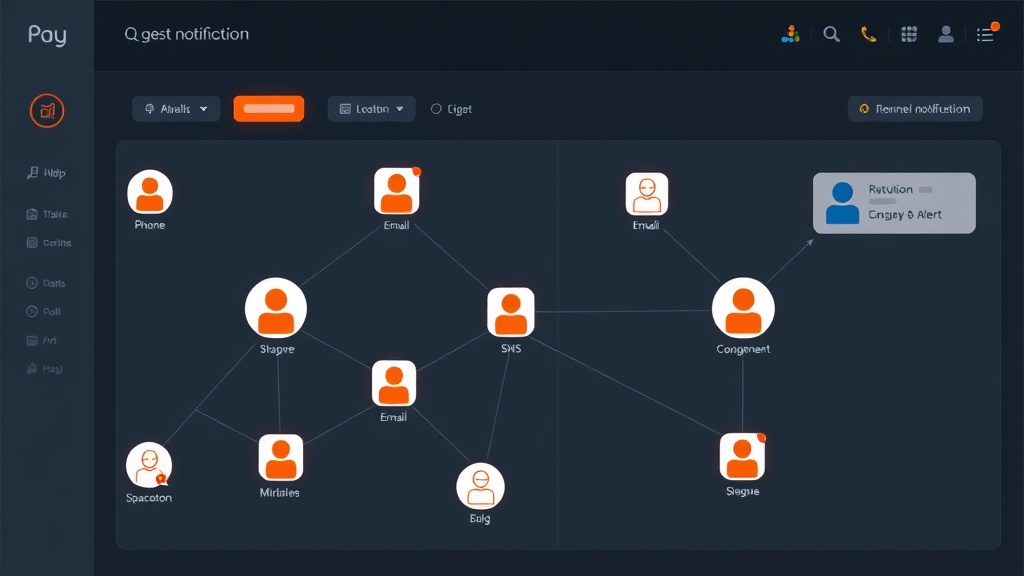
Implement intelligent routing based on incident characteristics. Route database alerts to your DBA team, API errors to backend engineers, and frontend issues to UI specialists.
Use tags and custom fields to trigger specific escalation paths. Incidents tagged with "payment" might immediately involve your finance and security teams alongside technical responders.
Create geographic routing rules for global teams. Route incidents during business hours to local teams, and escalate to follow-the-sun support during off-hours.
Customizing Notification Preferences
Individual Notification Settings
Allow team members to customize their notification preferences based on role and personal workflow. Senior engineers might prefer immediate phone calls, while junior team members benefit from email summaries.
Configure quiet hours for non-critical alerts. Team members can specify windows when they only receive high-severity notifications, reducing alert fatigue during personal time.
Enable smart notification delays that account for recent activity. If someone is already responding to incidents, delay additional notifications to prevent overwhelming active responders.
Channel-Specific Configuration
Set up Slack integration for real-time team collaboration during incidents. Configure dedicated incident channels that automatically populate with relevant team members and stakeholders.
Implement SMS notifications for critical alerts that require immediate attention. Reserve phone calls for the highest-severity incidents to maintain their urgency and impact.
Email notifications work well for incident summaries and post-incident reports. Configure automated emails that provide context and resolution steps after incidents close.
Advanced Notification Features
Incident Suppression and Grouping
Configure alert suppression rules to prevent notification spam during widespread outages. When your load balancer fails, you don't need separate alerts for every dependent service.
Implement time-based grouping for related incidents. Alerts occurring within 5-10 minutes of each other with similar characteristics should group into single notifications.
Use dependency mapping to suppress downstream alerts when upstream services fail. This reduces noise and helps responders focus on root cause issues.
Custom Notification Templates
Create incident-specific message templates that provide immediate context to responders. Include relevant runbook links, affected customer counts, and initial troubleshooting steps.
Customize notifications based on recipient role. Engineers need technical details and logs, while managers require business impact summaries and customer communication status.
Implement dynamic content in templates using incident fields and tags. This ensures notifications contain relevant, actionable information specific to each alert.
Integration with Status Pages
Connect Opsgenie notifications with your status page updates to maintain transparent customer communication. Platforms like Livstat can automatically update based on Opsgenie incident severity and resolution status.
Configure automated status page updates for P0 and P1 incidents that affect customer-facing services. This reduces manual overhead during high-stress incident response.
Set up notification rules that alert your customer success team when incidents affect specific customer segments, enabling proactive communication and support.
Testing and Optimization
Regular Notification Drills
Schedule monthly notification tests to verify that your escalation policies work correctly. Create test incidents with different severity levels and monitor response times across your team.
Document notification delivery times and identify bottlenecks in your escalation chains. Use this data to optimize timeout periods and contact methods.
Test notification delivery during different scenarios: high network load, mobile-only access, and international roaming situations.
Performance Monitoring
Track key metrics like mean time to acknowledge (MTTA) and mean time to resolution (MTTR) across different notification configurations. Use this data to refine your alerting strategy.
Monitor notification delivery success rates across different channels. If SMS delivery drops during certain hours, investigate carrier issues or implement backup notification methods.
Analyze incident patterns to identify opportunities for proactive alerting. Recurring issues might benefit from threshold-based alerts that catch problems before they impact customers.
Conclusion
Effective incident notifications with Opsgenie require thoughtful configuration of integrations, teams, escalation policies, and notification preferences. By implementing multi-level escalations, intelligent routing rules, and regular testing procedures, you create a robust incident response system that minimizes downtime and maintains team sanity.
The key to success lies in balancing comprehensive coverage with alert fatigue prevention. Start with basic configurations, gather feedback from your team, and continuously refine your notification strategy based on real incident data and response patterns.